
Mods: install, activate, disable and remove
Install Workshop or local mods, activate them in the main menu, approve permissions and restart. Check dependencies, removal and official modding docs.
1.0
Version history
- 1.0 Main guide
Added Workshop and local installation, activation, removal and troubleshooting.
Check the package and protect your save
Read the author’s supported game branch, prerequisites, conflicts and uninstall instructions. This guide covers the full game’s 1.0 release, 100-Rev13. Check release and branch information if the author requires a different version.
Before trying a mod that changes items, machines, stories or the economy, quit the game and back up the whole Windows save folder:
%USERPROFILE%/AppData/LocalLow/Questing Goose Studio/Probably Stolen/Get the author’s finished package. Mods/ holds playable packages; Modding/ holds source projects.
Subscribe through Steam Workshop
- Open Probably Stolen Workshop, read the item’s description and subscribe. Get its required mods too.
- Wait for Steam to finish downloading. Steam manages these files, so you do not copy them into
Mods/. - If you subscribed while the game was running, or its download finished after launch, quit and relaunch after the download. The game discovers it at startup.
Install a local package
Quit the game. In the Steam library, right-click Probably Stolen, choose Manage, then Browse local files. You can also locate the folder with Open Mods Folder in the mod menu, then quit before copying.
Extract the package into a subfolder of Mods/ beside Probably Stolen.exe. Create Mods if needed. Keep every DLL and the author’s resource folders in their original relative locations:
Probably Stolen/
  Probably Stolen.exe
  Mods/
    ExampleMod/
      manifest.xml
      ExampleMod.dll
      Textures/
      Localization/
The example resource folders apply when the author includes them. manifest.xml must be directly inside the mod’s own folder. A ZIP, loose files in Mods/, or an extra enclosing download folder will not load. Start the game after copying.
Activate and approve the mod
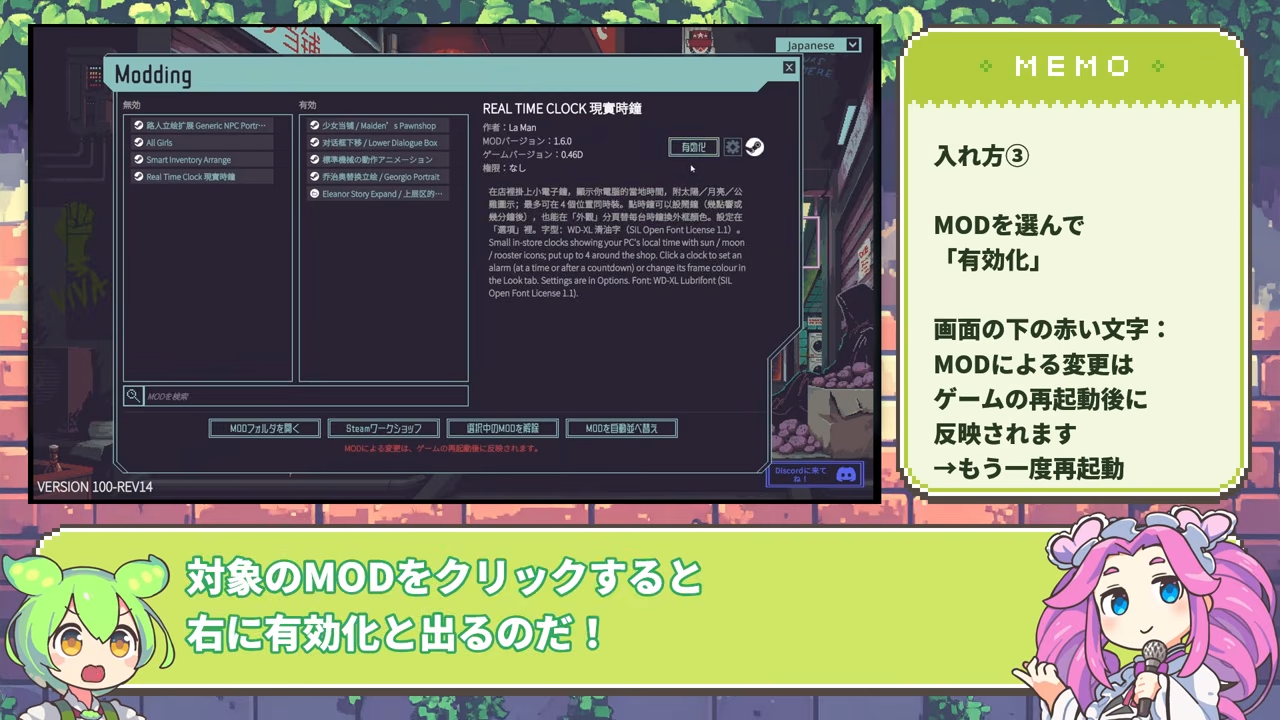
- Open Mods in the main menu. Select the new item under INACTIVE and choose Activate.
- Read any permission request before approving it. File or network access grants the mod those operations on your computer. Workshop publication alone is not developer verification. A mod that passes checks without requesting permissions may activate without a prompt.
- After activation, quit the game completely and restart. Check ACTIVE and the details for loading errors, then test the feature the author describes in your save.
There can be two restarts: one to discover a download made during play, then another after activation. Subscribing and waiting with the game closed avoids the discovery restart.
On another computer, review the mod again with Review and enable and restart. Synced subscriptions or saves do not transfer this computer’s approval. An update that adds permissions can also require another review.
Add dependencies and set the order
Install and activate each prerequisite yourself. Auto-Sort Mods orders active mods by their dependencies; it does not download missing ones. You can also drag entries in the active list when the search filter is empty. Restart after changing the order.
A settings button is available only for mods that provide settings. If a local package and Workshop item share the same mod ID, the local package takes priority. Check the override notice in the details when testing updates.
Disable, remove or update
Follow the author’s save migration or uninstall steps first, especially for mods that add persistent objects.
| Task | Action |
|---|---|
| Disable temporarily | Select the active mod, choose Deactivate and restart. Disabling revokes this computer’s approval. |
| Remove a Workshop mod | Use Unsubscribe Selected or unsubscribe on its Steam page, then restart. Check for a separate local copy. |
| Remove a local package | Deactivate, quit, move its folder out of Mods/, then restart. |
| Update a local package | Quit, replace it with the author’s compatible finished package and keep any configuration the author specifies. Review new permissions at next launch. |
Turning a mod off does not unload running code until restart. Unsubscribing does not remove a local override. Disabling keeps the mod’s stored save data. Follow the author’s instructions for added items and other changes to the save.
Find why it did not load
| Symptom | Next check |
|---|---|
| Subscription absent | Finish the Steam download and relaunch. If the in-game Workshop link does nothing, open it in Steam or use the link above. |
| Local package absent | Check Mods/ExampleMod/manifest.xml, extract the full package and confirm you downloaded the release rather than source code. |
| Active but no effect | Restart, read the loading reason in the details, check active dependencies and the author’s trigger conditions. Compare altered shortcuts with the normal controls. |
| Missing or invalid DLL, unknown permission or scan refusal | Get the author’s corrected package for your branch. Copy the exact error for the author rather than editing someone else’s manifest. |
| Still works after unsubscribing | Look for a local package with the same ID and remove or disable that copy. |
| Compatibility badge disagrees with the description | Rev13 compares against an old version value. Check the author’s release/Beta requirement; do not change the manifest to make the badge green. |
| Blocked or stopped by the game | Follow the displayed reason and remove that version. If the security list is stale, restore the connection and restart to refresh it. |
| Save behaves differently after removal | Stop overwriting the original progress, check the author’s migration steps and restore the pre-install backup if needed. |
If the game still fails with all mods disabled after a restart, compare your computer with the base game’s requirements and check the game’s own log.
For an error report, use the refusal dialog’s Copy log button. Player.log and mod-audit.log are in the save folder above. Include the mod version, game branch and error text.
Rev14 Beta packages can request APIs unavailable in Rev13, including window. Choose the author’s build for your installed branch. Announced December 10 security changes require a later game update; the current client does not change its rules just because the date arrives.
Use the official authoring documents
The official modding repository contains the tools and examples for making mods. For Rev13, start with the fixed README, then use the Modding Guide for APIs and examples and APIChanges for migration notes. The repository’s current main branch also includes Rev14 Beta material, so match each section to your game branch.
The README’s .NET SDK 6+ and build instructions are for authors. Developer tools use an empty dev.txt beside the executable and a restart; F8 opens the console and F9 the developer menu. Normal installation uses the menu steps above.
Related Articles
Guides
Cartel deliveries: quotas, counter space and leaving safely
Prepare weekly Dream Dust, check quantity and purity penalties, use both counters, and finish the Cartel reputation route to leave without ending your run.
Guides
Plant trait editing: remove, upgrade and check rank limits
Remove unwanted plant traits while keeping seeds, clear opposing traits, upgrade DNA disks and check rank limits, heat and inherited seeds.
Guides
Probably Stolen reactor guide: charging, repairs and meltdown
Get the Makeshift Reactor, charge adjacent batteries and machines, plan nightly integrity loss, upgrade safely and dispose of radioactive waste.
Was this helpful?
Thanks for the feedback!